Think of an animation. How can an animator make a dog dance through stop-motion? How do we design a set of continuous motions through the stop-motion animation scheduler?
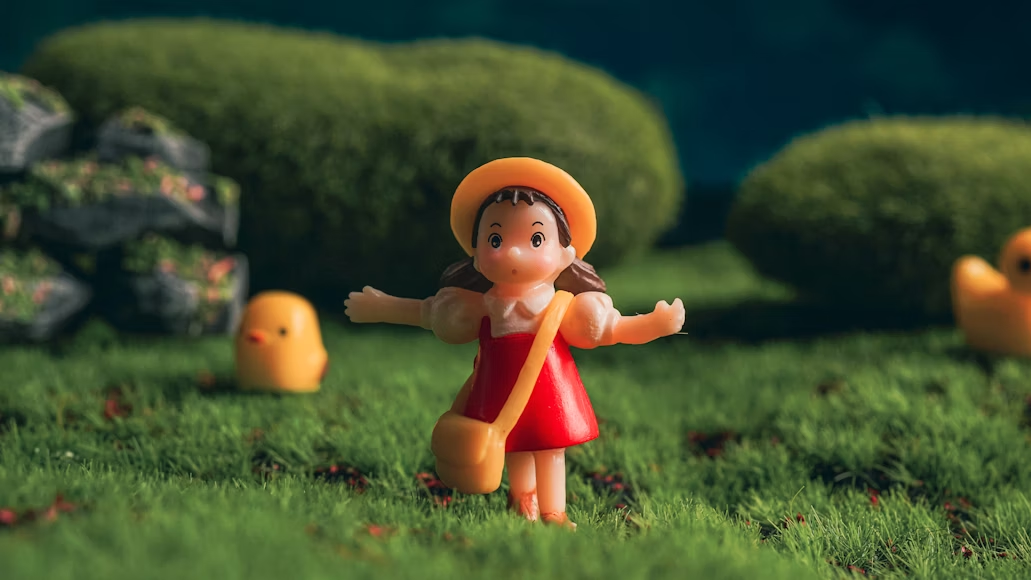
Figure 1. Stop-motion animation
Like in Figure 1, a 3D or clay model can be posed step-by-step (also known as animating each frame ) to create a stop-motion animation. With your Bittle X, the same effect can be achieved by posing the dog with a sequence of new movements on every progressive frame.
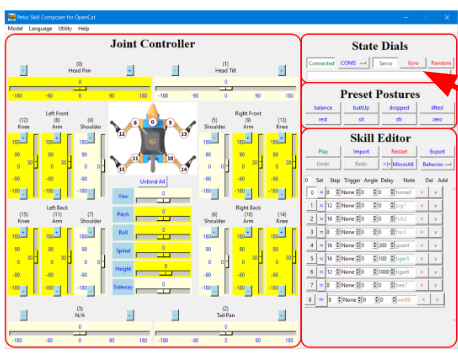
Open up Skill Composer. The program allows you to control each joint of the dog. Bittle X has joints where each joint is controlled by motor (known as a servo ).
Initial setup
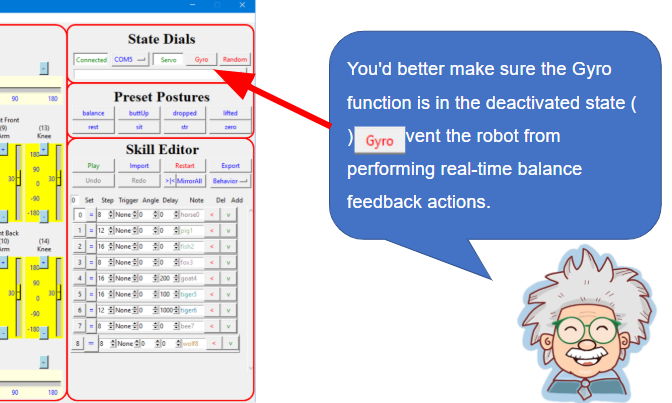
First, make sure Gyro is disabled so that Bittle X does not move while you are trying to program it.
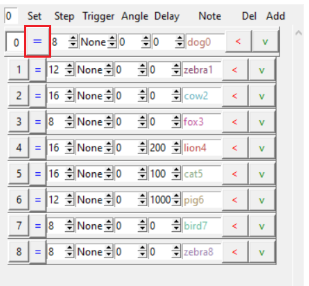
In the section that says Skill Editor, click on the = button at frame 0. See Figure 2.
Figure 2. Skill Editor with the frames for animation
The = symbol will become bold and larger.
Building Keyframes
Bittle X’s animation is done by progressing through new keyframes.
You can add keyframes (postures) by doing the following:
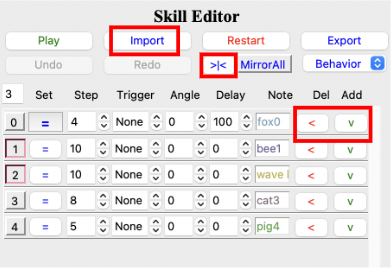
Click on Add v a frame. See Figure 4.
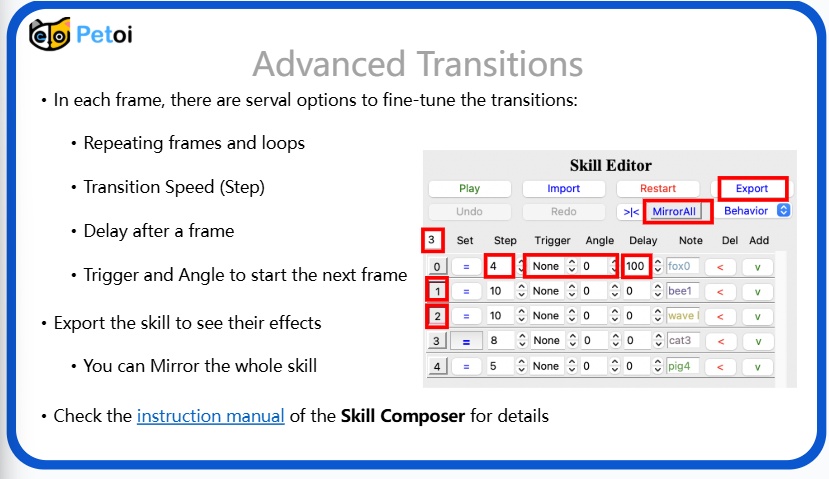
You can mirror >|< a posture, delete Del frames, and also Import pre-made or saved skills.
Figure 4. Adding keyframes
Advanced Tips:
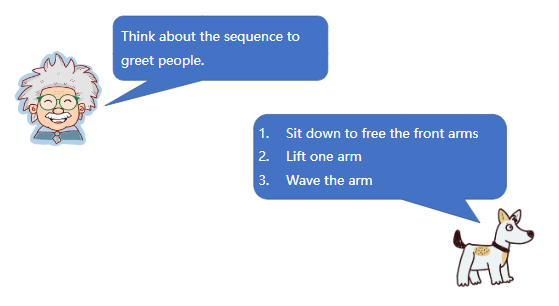
To make Bittle X learn a new dance skill by sitting down, lifting one arm, and waving arms, follow the sequence below:
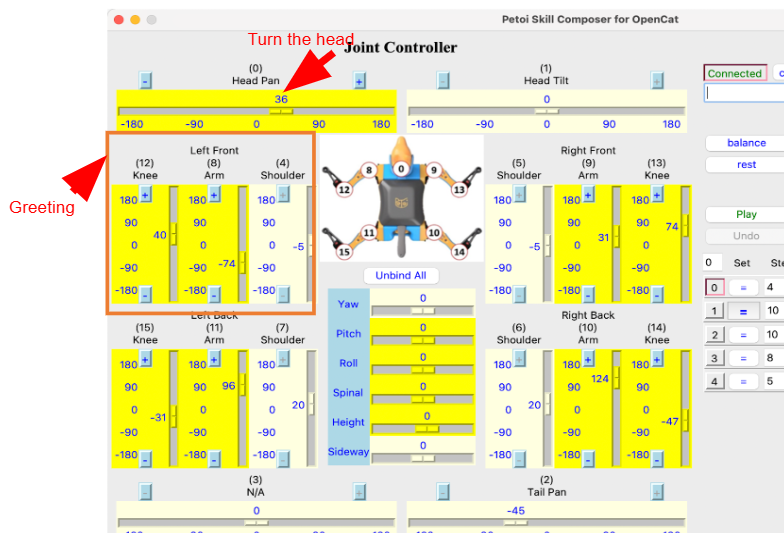
Under Joint Controller , find the the Head Pan section. Use the sliders to rotate Bittle X’s head back and forth. The slider turns the head by rotating it by a number of degrees, from -180 to 180. In addition, you can make Bittle X raise its left arm under the Left Front section by moving the slider in that section. See Figure 5.
Figure 5. Posing Bittle X by moving the head and left arm.
Start practicing using the Skill Composer by making a pose like above. Then activate the next keyframe (by pressing = ) and making another new pose as the next step.
Press the Play button to see how the animation sequence is going.
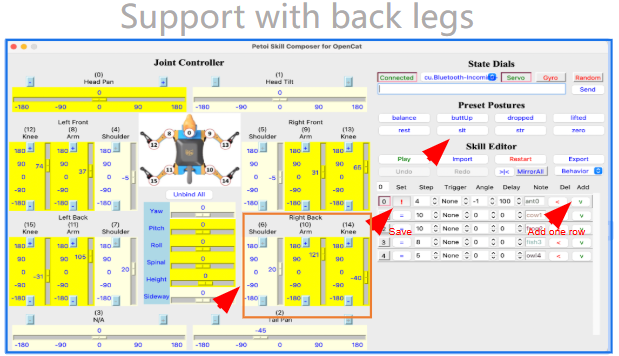
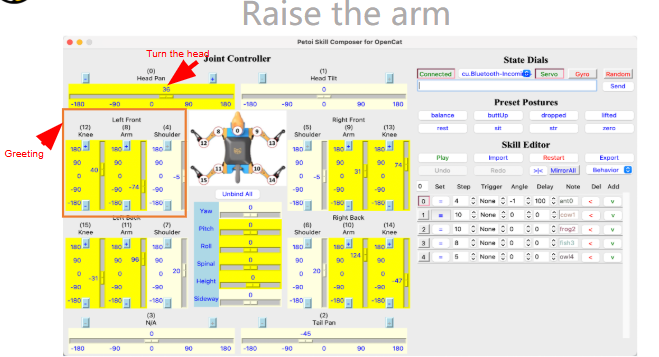
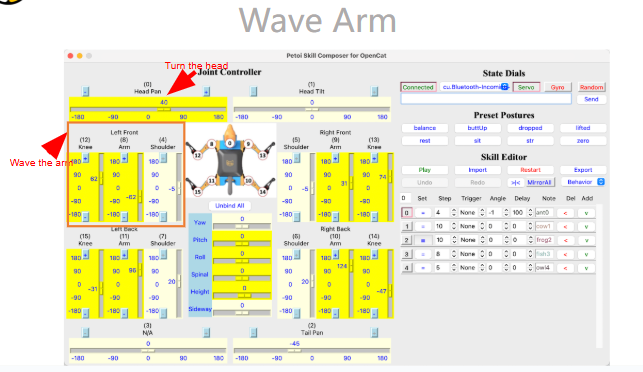
To make Bittle X do a dance move by sitting back and waving its front arms, try out this sequence with these picture hints. You can also make your own custom dance move.
Make Bittle X sit back on its back legs.
Make Bittle X raise the arm.
Make Bittle X wave the arm.
Press play and see the sequence.
Note: How do I edit a specific pose or part of the skill?
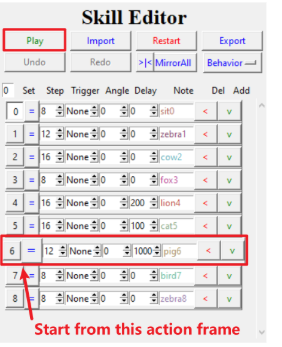
You can skip to different parts of the skill by clicking on the = button of the keyframe you want to edit. You can press Play, and it begins from that keyframe. See Figure 6.
Figure 6. Editing a specific part of the sequence.
Export and Share Skill
The skill can be exported once you are done.
Under Skill Editor, click on Export.
This saves it as a .md file which can be saved to your files and you can import files later.
Calling your Skill
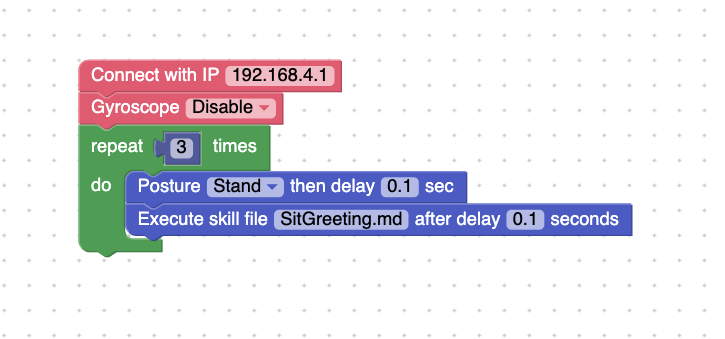
In the Petoi Web Coding Blocks, you can call the exported skill. You will need to call the proper .md file in the code. See example below.
Run the code, and it will play the new skill!
You-Try:
Pet Trick - Bittle X is trained to do a unique pet trick. Try making your own pet trick.