*Don’t Take My Bone - Bittle X reacts by walking backwards when someone touches the bone sensor.
Thinking About the Task
Initial Setup
Connect the sensor to Bittle X.
Let’s Code!
Task 1: Bittle X’s head rotates when the sensor is touched
Setup the sensor by making sure it is connected. The digital read may correspond to the port in the figure below.
Make the following code:
**Update: Change Digital Input to the proper inputs for your left and right sensor on the bones.
Suggestion: Left Val = 34, and right Val = 35. But this may not be correct for your model. Find the input number by trial and error.
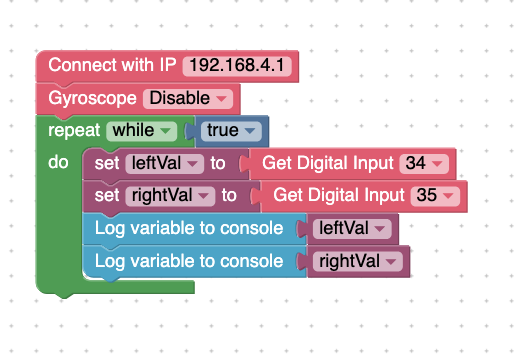
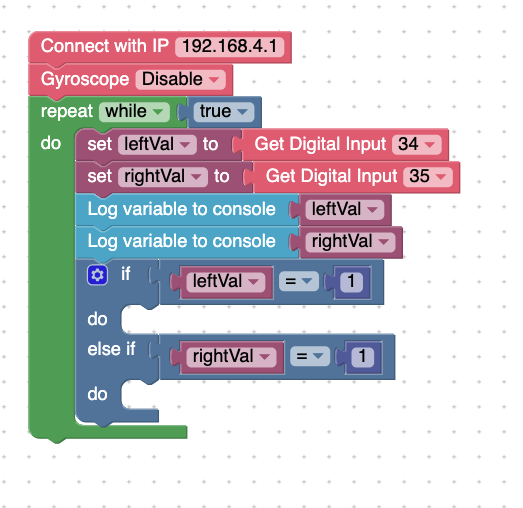
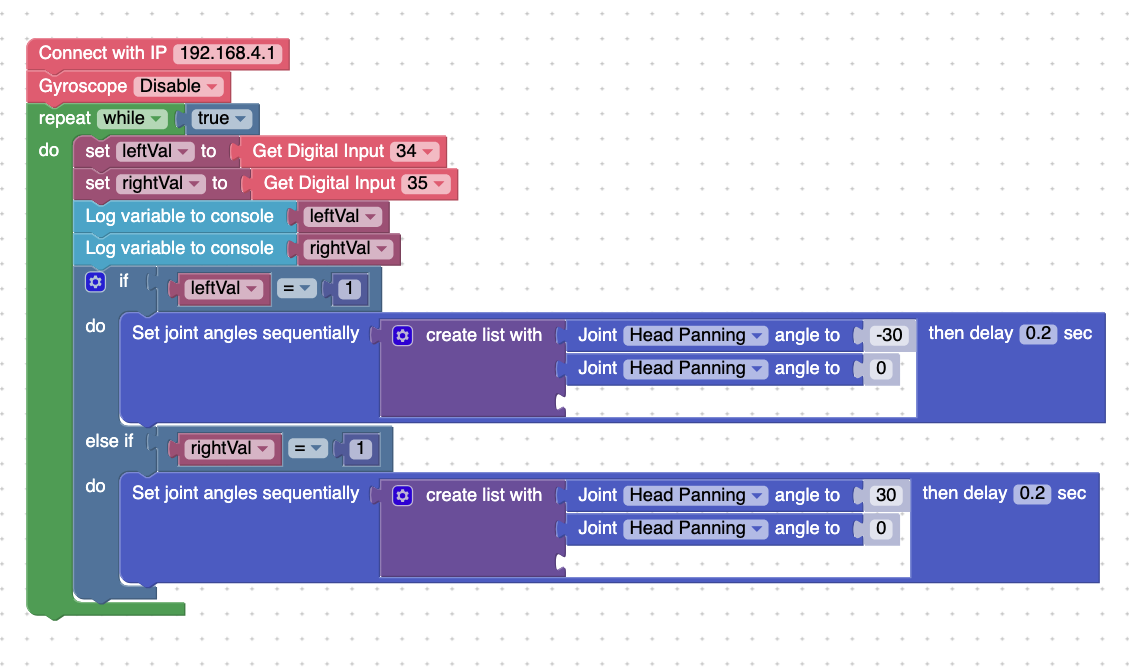
Summary: In this code, if the left side of the bone is touched, Bittle X’s head will pan away. If you touch the other side of the bone, Bittle X’s head pans away, but in the other direction.
Task 2: Bittle X plays an alarm when the bone is touched
Make the following code:
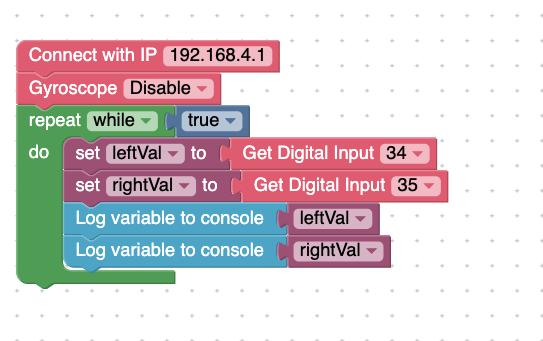
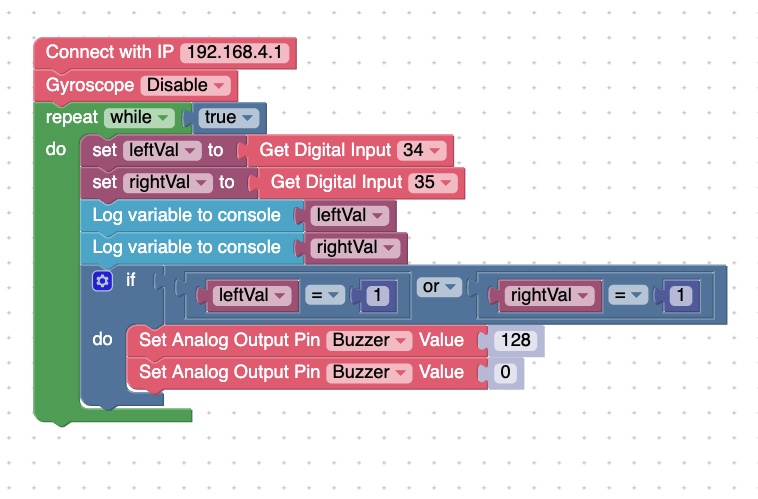
Summary: In this code, when the bone is touched, a buzzer will sound.
Task 3: Use variables to read the sensors
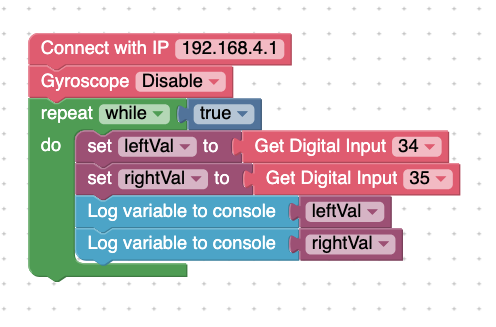
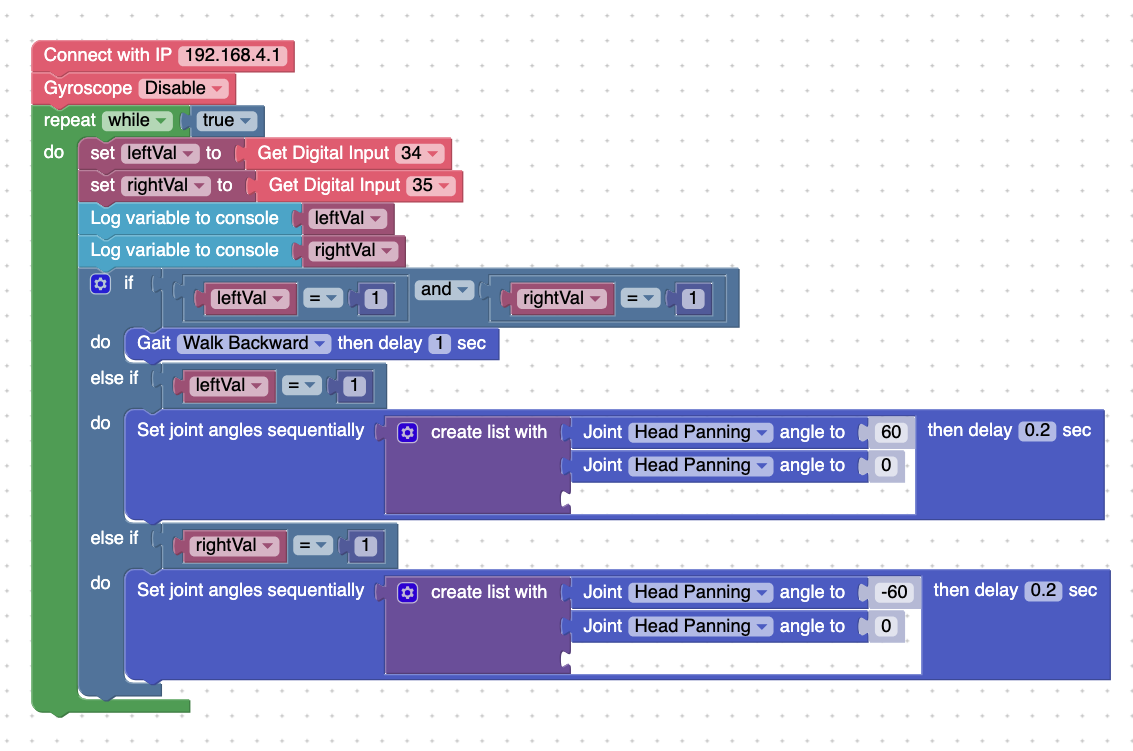
In this code, the result is the following:
- Pressing the left side of the bone touch sensor: the head moves to the right
- Pressing the right side of the bone touch sensor: the head moves to the left
- Pressing both sides at the same time: Bittle X walks back
Task 4: Long press
This code detects if a long press (holding the sensor for 1 second or more) happens or not.
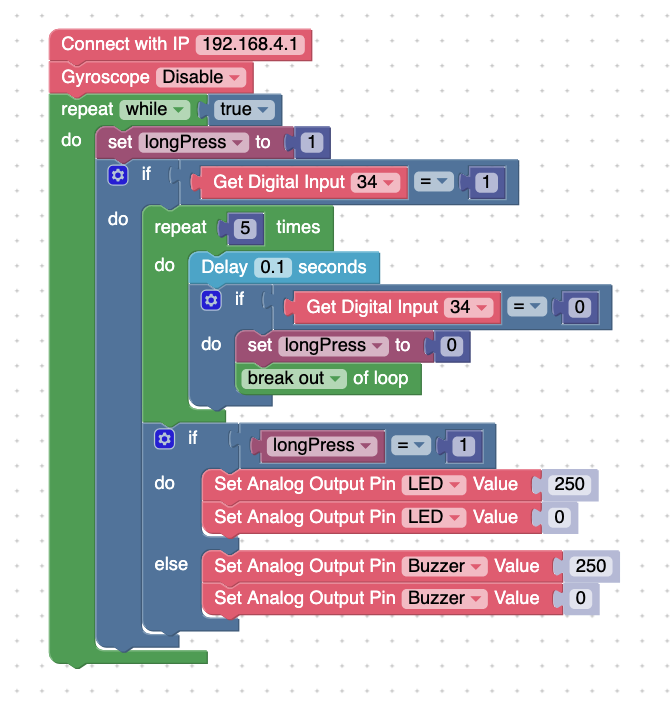
Summary: When you long-press the sensor, the LED will light up. If you short press, an alarm will sound.
Project Takeaways
- The touch sensor can be used to detect long presses or short presses
- The left and right sides of the touch sensor bone can be independently used as triggers for your program.
You-Try:
- Make a program that uses the bone touch sensor; make Bittle X sit, and then make it react a certain way by using the left and right sides of the sensor.